
Easy Tips for Organizing Files on Your Computer Efficiently
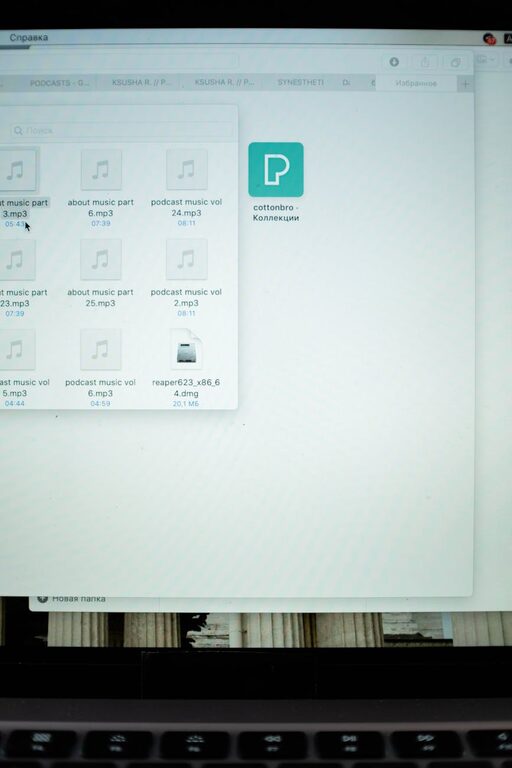
Keeping your computer files organized might seem like a small task, but it can make a significant difference in how efficiently you work and how quickly you find what you need. A cluttered desktop or a messy folder structure can lead to wasted time and increased frustration. Whether you’re managing work documents, photos, or personal files, having a solid system is key. This post shares helpful tips to organize files on your computer in a simple and sustainable way.
Why Organize Your Files?
Before diving into the how, it’s useful to understand why organization matters. Well-organized files:
– Improve productivity by reducing search time.
– Help backup important data more easily.
– Reduce stress by keeping your workspace clean.
– Prevent accidental loss or deletion of files.
Now, let’s explore practical steps to get and keep your computer files tidy.
1. Create a Logical Folder Structure
The foundation of organization is having a clear and logical folder hierarchy.
Plan Your Main Folders
Start by categorizing your files into main folders based on their type or purpose. Examples include:
– Work
– Personal
– Photos
– Projects
– Receipts
Keep these top-level folders accessible and distinct.
Use Subfolders for Specific Categories
Within each main folder, create subfolders to further sort files. For example, inside “Work,” you might have:
– Reports
– Presentations
– Meeting Notes
This structure helps group related files and prevents a single folder from becoming overloaded.
2. Use Descriptive and Consistent File Names
File names should clearly describe the content and be consistent over time.
Be Specific
Avoid generic names like “Document1.docx” or “Untitled.” Instead, use descriptive terms such as “2024_April_Marketing_Report.docx.” It makes searching easier.
Include Dates When Relevant
For files that are updated regularly or are date-sensitive, include the date in the file name, preferably in the YYYY-MM-DD format (e.g., 2024-06-15_Meeting_Agenda.pdf). This helps sort files chronologically.
Avoid Special Characters
Use letters, numbers, dashes, and underscores, and avoid spaces or special characters to prevent issues across different devices or software.
3. Regularly Declutter and Delete Unnecessary Files
Organization is an ongoing process, not a one-time setup.
– Schedule a weekly or monthly review to delete files you no longer need.
– Remove duplicate files that take up space.
– Archive older files you want to keep but don’t need immediate access to, either by moving them to an external drive or cloud storage.
4. Take Advantage of Built-in Tools and Features
Both Windows and macOS offer tools to help organize files.
Use Search and Tags
Utilize the search functionality to find files quickly, and consider adding tags or keywords to files if your operating system supports it. Tags can help group files across folders.
Use Libraries (Windows) or Smart Folders (macOS)
These features allow you to aggregate files from different locations based on criteria like date, tags, or file type without moving them physically.
5. Backup Your Files Regularly
Organization is more valuable when combined with good backup practices.
– Use cloud services like Google Drive, OneDrive, or Dropbox for automatic backups.
– Alternatively, back up files on an external hard drive.
– Keep at least two backup copies: one onsite and one offsite.
6. Avoid Overloading Your Desktop
The desktop should be reserved for temporary or frequently accessed files. Too many files on the desktop can slow down your computer and reduce your ability to find items quickly.
7. Use File Management Software (Optional)
If you have a large volume of files, you might benefit from file management software. These tools provide advanced features like batch renaming, duplicate file detection, and more.
8. Develop Good Habits
– Save files in the correct folders immediately instead of leaving them in the Downloads folder.
– Create a “To Be Sorted” folder for new items and review it regularly.
– Take a few minutes at the end of your workday to tidy up your digital workspace.
—
Organizing files on your computer does not have to be overwhelming. By establishing a clear structure, using descriptive naming, and maintaining regular habits, you’ll save time and keep your digital workspace clean. Start small and build these tips into your routine for lasting benefits. Happy organizing!